
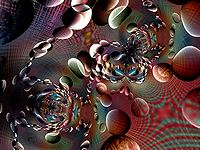

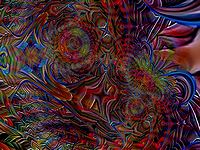
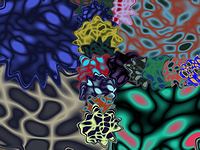
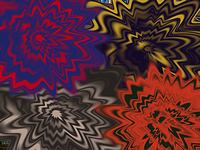
 button on Edit Tools (or type the
F12 key) to toggle Mapping on/off. Right-click
to access the Mapping Menu, which provides a selection of
Complex Variable Functions to choose from. As Tools and
Effects are applied, the mapped screen will continually change to show
their progression and evolution, often producing surprising, dimensional motions.
button on Edit Tools (or type the
F12 key) to toggle Mapping on/off. Right-click
to access the Mapping Menu, which provides a selection of
Complex Variable Functions to choose from. As Tools and
Effects are applied, the mapped screen will continually change to show
their progression and evolution, often producing surprising, dimensional motions.
As with all Liquib actions, Mapping activity is captured with
Scripts. Mapping
can optionally be included with Automatic Effects. Use the Maps
tab of the Configuration
screen to control how often Mapping should be applied, and which Map
Functions are available for random selection.
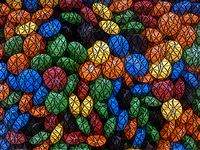
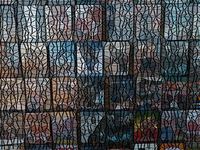
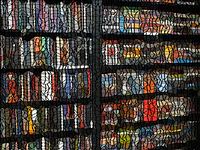
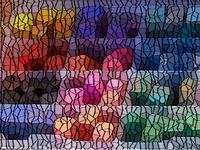
Tile Size controls the relative size of each tile. Setting the
Tile Size to a fairly low value makes it easier for the Mosaic Tool
to approximate the source image elements. The Shape Regularity %
determines how close to the 'ideal' Shapes the tiles will appear.
For example, with Shape Regularity % set to 100% and a Hexagonal Tile
Shape, the tiles will actually look like six-sided hexagons. When set
to lower percentages, the Mosaic Tool will attempt to deform the
Tiles as needed to align with detected image edges. So generally,
low Tile Size and low Shape Regularity % values give the Mosaic
Tool the most flexibility with fitting tiles to match source image elements,
and will result in more accurate representations of the picture.
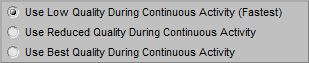 especially with large, high-resolution monitors. New Mapping
Options are now available via the Mapping Menu to choose the level of
Quality to use for Mapping during continuous activity, (such as while
Automatic Effects or
especially with large, high-resolution monitors. New Mapping
Options are now available via the Mapping Menu to choose the level of
Quality to use for Mapping during continuous activity, (such as while
Automatic Effects or