 The Save As dialog includes options for whether and where a Remake
Script should be saved. Defaults for those options can be set through the
Save /Quick Save Options
screen. A Remake Script can later be loaded just as any other
Kaleider Script,
and then played to recreate the saved image, and just as any other Script, it can
be modified. It's also possible to save only a Remake Script without
actually saving the rendered image.
The Save As dialog includes options for whether and where a Remake
Script should be saved. Defaults for those options can be set through the
Save /Quick Save Options
screen. A Remake Script can later be loaded just as any other
Kaleider Script,
and then played to recreate the saved image, and just as any other Script, it can
be modified. It's also possible to save only a Remake Script without
actually saving the rendered image.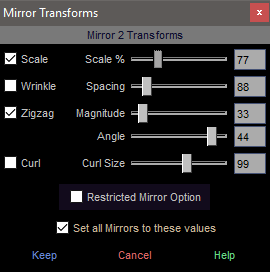 which can alter the reflection properties of Mirrors. Any combination
of Scale, Wrinkle, Zigzag and/or Curl Mirror Transforms can
be specified for each Mirror, along with their associated parameters. The
number of possible variations is truly vast (though some may be hideously ugly!).
which can alter the reflection properties of Mirrors. Any combination
of Scale, Wrinkle, Zigzag and/or Curl Mirror Transforms can
be specified for each Mirror, along with their associated parameters. The
number of possible variations is truly vast (though some may be hideously ugly!).


With some of the more extreme distortions, the final appearance of an image might
be greatly improved by using the Improve Quality function (the  button)
to reduce pixelation. The Mirrors tab of the Automatic Effects Configuration screen provides options
to specify whether or not Mirror Transforms should be included during
Automatic Effects or when Random Effects are performed.
button)
to reduce pixelation. The Mirrors tab of the Automatic Effects Configuration screen provides options
to specify whether or not Mirror Transforms should be included during
Automatic Effects or when Random Effects are performed.
 The new Action Pacing/Magnitude submenu provides controls to adjust the
relative speed of motion and action events, including Wandering, Room
Roaming and Animate Colors. The Action Pacing slider
determines the timing of actions, essentially the number of events per second,
similar to a 'frame rate'. Higher values result in faster action. Action
Magnitude specifies the relative size of each action. For example, with
automated Wandering motion, a higher Action Magnitude value would
cause larger movements with each step. Ideally, to make motions appear as
smooth as possible, the Action Magnitude should be set fairly low -- large values
will tend to create jerky, jumpy movements. Then the Action Pacing
can be adjusted according to your preference for frenetic or sedate action.
The new Action Pacing/Magnitude submenu provides controls to adjust the
relative speed of motion and action events, including Wandering, Room
Roaming and Animate Colors. The Action Pacing slider
determines the timing of actions, essentially the number of events per second,
similar to a 'frame rate'. Higher values result in faster action. Action
Magnitude specifies the relative size of each action. For example, with
automated Wandering motion, a higher Action Magnitude value would
cause larger movements with each step. Ideally, to make motions appear as
smooth as possible, the Action Magnitude should be set fairly low -- large values
will tend to create jerky, jumpy movements. Then the Action Pacing
can be adjusted according to your preference for frenetic or sedate action.
The actual timing of events is also somewhat dependent on the power of your
computer and on which Kaleider features are active. For instance, when
a non-flat Surface is enabled, Wandering motion will tend to be a bit
more sluggish. These controls allow you to adapt the timing to the performance
of your computer and your personal tastes. When using the 3D Rooms feature, Motion
Velocity and Rotation Speed values can also be set in the Rooms
Options screen to further refine the timing of Roaming movements.
 Automated Roaming motion within
Rooms can now be somewhat controlled. The Roam button
can be right-clicked to access a popup menu of Roaming options. A
Roaming Pattern can be selected from among those available for the current
Room. Options for Observer Motion, Bubbles Motion
and/or Bubbles Spin can be toggled off or on. For certain Rooms,
it's also possible to choose whether or not Rotations should be activated.
Automated Roaming motion within
Rooms can now be somewhat controlled. The Roam button
can be right-clicked to access a popup menu of Roaming options. A
Roaming Pattern can be selected from among those available for the current
Room. Options for Observer Motion, Bubbles Motion
and/or Bubbles Spin can be toggled off or on. For certain Rooms,
it's also possible to choose whether or not Rotations should be activated.