As with all new versions, it is free for existing customers to upgrade to the 64-bit Liquib 2.8. Your existing Registration should still be recognized when the new program is installed, so it shouldn't be necessary to enter a Registration Key.
The Video Options screen
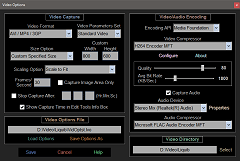 has been redesigned to accomodate these changes.
An Encoding API drop-down box has been added to allow selection of either
DirectShow or Media Foundation. This choice will determine
the Encoding Codecs that are available on your computer to be used as Video
and Audio Compressors. The Encoding API selection also controls
which video file extensions will be used for captured videos when AVI / MP4 /
3GP has been chosen as the Video Format. Videos created with
DirectShow will have the '.avi' file extension, while '.mp4' will be used by default
for Media Foundation based Videos (or the extension can also be changed to '.3gp').
has been redesigned to accomodate these changes.
An Encoding API drop-down box has been added to allow selection of either
DirectShow or Media Foundation. This choice will determine
the Encoding Codecs that are available on your computer to be used as Video
and Audio Compressors. The Encoding API selection also controls
which video file extensions will be used for captured videos when AVI / MP4 /
3GP has been chosen as the Video Format. Videos created with
DirectShow will have the '.avi' file extension, while '.mp4' will be used by default
for Media Foundation based Videos (or the extension can also be changed to '.3gp').
 Version 2.8 adds new capabilities and
possibilities to the Liquib Tiling feature. A Tile
Adjustments panel can be toggled on above the Tiling buttons on Edit
Tools by clicking the Adjs button. The source image that
Tiles are rendered from can appear to Rotate by moving the Virtually
Rotate Source Image slider. (The mouse wheel can also be used to
Rotate.) The Rotate Origin can be either Base Center, to
turn around the middle of the base rectangle of the Tile, or Tile Center
to revolve about the middle of the full Tile (which is at the lower-right
corner of the base rectangle). The Shift Type controls how Tile
Shifting is performed. The choices are: Tile to move the
Tile Position itself, Image to shift the underlying source image
instead, or Display to move both the Tile and the Image (which
appears to shift the entire screen display). Click Reset to reset the
Rotate Degrees to 0 and set the Rotate Origin and Shift Type to
default values (the Image Shift values can also optionally be reset to 0).
Version 2.8 adds new capabilities and
possibilities to the Liquib Tiling feature. A Tile
Adjustments panel can be toggled on above the Tiling buttons on Edit
Tools by clicking the Adjs button. The source image that
Tiles are rendered from can appear to Rotate by moving the Virtually
Rotate Source Image slider. (The mouse wheel can also be used to
Rotate.) The Rotate Origin can be either Base Center, to
turn around the middle of the base rectangle of the Tile, or Tile Center
to revolve about the middle of the full Tile (which is at the lower-right
corner of the base rectangle). The Shift Type controls how Tile
Shifting is performed. The choices are: Tile to move the
Tile Position itself, Image to shift the underlying source image
instead, or Display to move both the Tile and the Image (which
appears to shift the entire screen display). Click Reset to reset the
Rotate Degrees to 0 and set the Rotate Origin and Shift Type to
default values (the Image Shift values can also optionally be reset to 0).
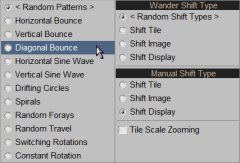 The
The  Wander button can be right-clicked to access
a popup menu with options to control the operation of automated Tile Wandering
motion. By default, both the Wander Pattern and the Shift Type
are randomly selected.
Wander button can be right-clicked to access
a popup menu with options to control the operation of automated Tile Wandering
motion. By default, both the Wander Pattern and the Shift Type
are randomly selected.
The Automatic
Effects Configuration screen includes a Tiles tab with options to
determine how the Tiling feature might be used during Automatic Effects