Phota 3.9
- New Features
Version 3.9 of Phota provides the ability to detect and and properly interpret
Color Space information that might be encoded in some photos. A new
BillBoards Gallery style has been added, and the Animate Colors feature
has been much improved. Some further details below:
- Color Management => Some digital
cameras provide an option to encode photographs according to a particular Color
Space. A Color Space defines how the Red, Green and Blue (RGB) values recorded for
each pixel of an image are stored, and how they should subsequently be interpreted when
displayed or printed. Color Space information is normally stored in the form of
ICC Profiles that are embedded within the image files. The most common
Color Space is sRGB, which is typically the default Color Space used with display
monitors. However, images encoded with an alternate Color Space, such as
AdobeRGB or ProPhoto, might appear drab or discolored if displayed on an sRGB monitor
without appropriate conversion.
When the Apply Color Management option is set, Phota will attempt to
retrieve and interpret any Color Space information stored in Album image files. If the
Image Color Space differs from the Display Color Space, the image pixel values will be
translated to properly express their intended colors. This conversion only affects
the display -- the images themselves are not altered.
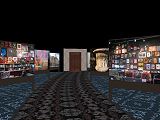
- Billboards Gallery => The new Billboards
3D Gallery exhibits album
photos as signs or posters that are positioned along both sides of a "road".
When Explore Gallery is activated the observer will automatically travel
along the road and pause to admire each image in turn. It's also possible to
manually move around Gallery scenes via keyboard commands. The
photos displayed within a Gallery can be clicked to view them as full-screen
images.
- Animate Colors => The Animate Colors
feature has been greatly expanded and enhanced. Now there are 5 Colorize
Methods: Garish (essentially the original method), Iridescent,
Neonic, Opalescent and Contusive.
 The
Cycle Type parameter can be set to Switch Colors or
Forward/Reverse. The Animate Colors Options screen has been
redesigned to allow interactive experimentation, so that the results of parameter
adjustments can be reflected on the main Phota screen in real-time. The
current Color Step can be adjusted via a slider (the slider can also be moved
with the Arrow keys or the mouse wheel). Animate Colors Options can be
conveniently accessed by right-clicking the Colors button.
The
Cycle Type parameter can be set to Switch Colors or
Forward/Reverse. The Animate Colors Options screen has been
redesigned to allow interactive experimentation, so that the results of parameter
adjustments can be reflected on the main Phota screen in real-time. The
current Color Step can be adjusted via a slider (the slider can also be moved
with the Arrow keys or the mouse wheel). Animate Colors Options can be
conveniently accessed by right-clicking the Colors button.
The Slide Show Configuration screen now includes a Color
Seconds value to specify how long the colors of each image should be shifted.
While Animate Colors is activated, this value will override the Slide Show
Display Seconds (or the Gallery View Seconds if Explore Gallery
mode is active).
- Interface Scaling => The
 Album Appearance screen now
includes an Interface Scale option. When using a large, high-resolution
monitor, the text and buttons on Phota screens and controls might appear rather
small and difficult to read. The size of text, buttons and other controls can be
adjusted by switching the Interface Scale from the default Normal to
Tiny, Large or Jumbo. It's also easier now to save and
apply default appearance values to be used when new Albums are initially created.
Album Appearance screen now
includes an Interface Scale option. When using a large, high-resolution
monitor, the text and buttons on Phota screens and controls might appear rather
small and difficult to read. The size of text, buttons and other controls can be
adjusted by switching the Interface Scale from the default Normal to
Tiny, Large or Jumbo. It's also easier now to save and
apply default appearance values to be used when new Albums are initially created.
Click to review Phota 3.8
enhancements